
Dragging through a film with no preview is guesswork. You know the scene you want is somewhere after the middle, so you jump, land in the wrong place, jump again, and give up and watch from wherever you ended.
Trickplay fixes that. Jellyfin walks through each video once, saves a grid of small images, and from then on dragging the timeline shows you what is there. It is the single best return on ten minutes of setup in the whole server.
What it costs
Two things, both one-off.
Processor time, while the images are generated. This is real work: it decodes every video at high speed. On a modern machine expect a few minutes per film, and on an old laptop or a low-powered NAS a good deal longer. Run it overnight.
Disk space, to store them. Budget roughly 1 to 3 GB per hundred hours of video at the default settings. Less than you would guess, because the images are small and heavily compressed.
Note
Trickplay was a plugin before it was a feature. If you are following an older guide that tells you to install something, you are reading about the old way. On a current server it is built in.
Turn it on for a library
Trickplay is a per-library setting, so you can generate images for films and skip your collection of raw camera footage.
- Open Dashboard, then Libraries.
- Click the three dots on a library, then Manage Library.
- Find the trickplay section and enable image extraction.
- Save.
Do it for each library you actually scrub through. Films benefit most.
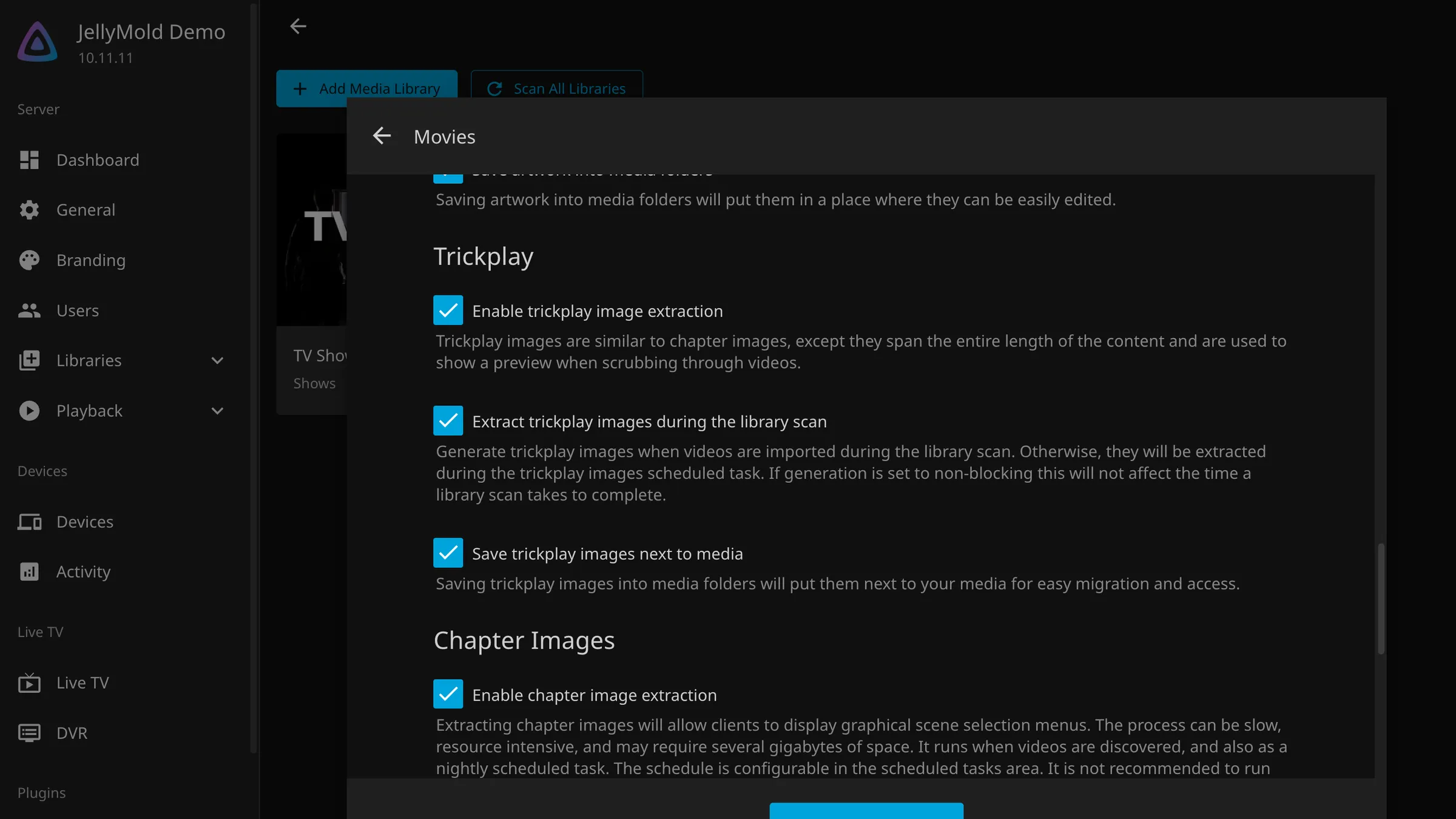
Check the server-wide options
The defaults are sensible and two of them are worth a look. They are under Dashboard, then Playback.
The interval decides how far apart the thumbnails are. The default, around ten seconds, is a good balance. Shorter means finer scrubbing and more processing and more disk.
Hardware acceleration for trickplay generation, where your server has a GPU that Jellyfin can use, turns hours into minutes. If you have already set up hardware transcoding, turn it on here too.
Tip
Leave the image width alone. It is tuned to look right on a phone and a television without storing anything larger than either can use.
Let it run
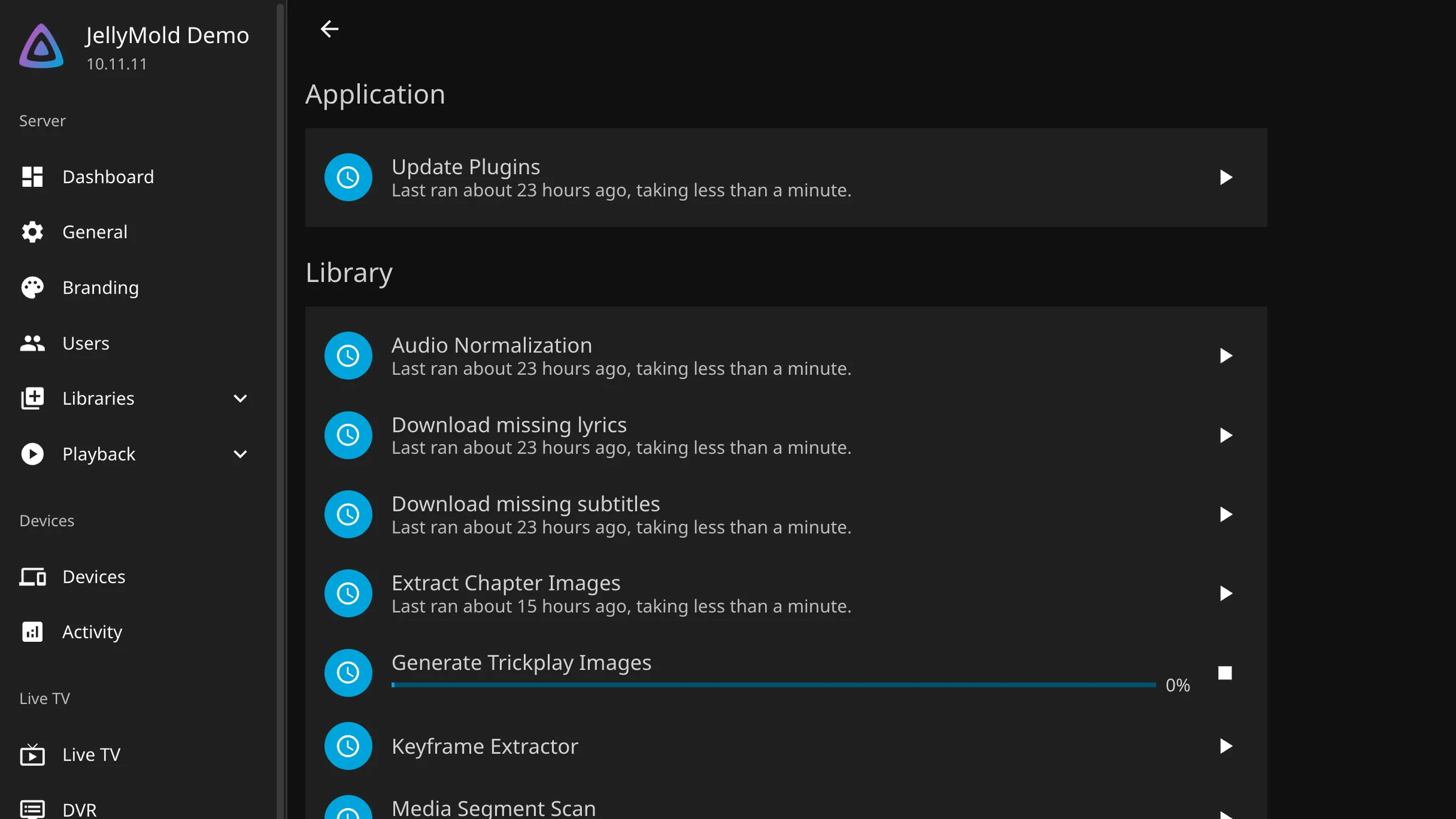
New files get their images during the regular library scan. Everything already in your library needs one catch-up pass.
- Open Dashboard, then Scheduled Tasks.
- Find the trickplay image task.
- Start it, and leave the machine alone.
A large library will take hours. It is safe to interrupt: the task picks up where it stopped, so restarting it does not throw away what it already did.
Careful
On a NAS or a small home server, this will make everything else feel slow while it runs, and the fans will be audible. Start it when nobody wants to watch anything.
Check that it worked
Open a film you know has finished processing and drag the timeline. You should see a thumbnail follow your finger or your cursor.
Nothing appearing usually means one of three things: the task has not reached that file yet, the library it is in does not have trickplay enabled, or the client you are using does not show previews. A quick way to separate the last one from the others is to try the same film in the web interface, which does.
Note
JellyMold shows trickplay previews while you drag, scaled for a phone screen. If the images exist on the server, they are used.