
You have a film open on your iPhone and a television across the room. Since version 1.4, JellyMold sends it there: AirPlay to an Apple TV, or Google Cast to a television with Chromecast built in, with your phone left holding the remote.
Send it to an Apple TV
- Make sure your iPhone or iPad and your Apple TV are on the same network.
- Start the film in JellyMold.
- Tap the AirPlay button in the player.
- Choose your Apple TV.
The picture goes with the sound, and playback carries on from where you were.
What to expect. Your Jellyfin server prepares the video for the television, so it can take a few seconds to start rather than beginning instantly the way playback on the device does. Some subtitle formats and some audio settings apply only when you are watching on the iPhone or iPad itself.
Send it to a Chromecast
Chromecast is turned on in settings first, because the control is hidden until you ask for it.
- Open Settings, then Player, and turn on Show Chromecast control.
- Put the television and your phone on the same Wi-Fi network.
- Start the film, tap the AirPlay button, and choose Chromecast.
Leave the app and come back, or close it and open it again, and JellyMold reconnects to the television that is still playing, at the point the television has reached. You can hand the phone to somebody else and pick the film up again afterwards.
Note
The Chromecast control and the AirPlay devices live behind the same button in the player. If you have never turned the Chromecast setting on, that button offers AirPlay alone.
The phone becomes the remote
While the television has the picture, JellyMold is the remote. Play, pause, skip, scrub, jump between chapters and change subtitles all work from the app, and play, pause and skip work from the lock screen as well. The controls stay on screen and the page does not dim, so the phone is still a remote when you pick it back up.
Why starting takes a moment
Watching on the device itself, JellyMold asks your server for the file as it is and decodes it on the device. That is why a 4K film stays a 4K film, why your server’s processor stays cool, and why playback starts almost at once.
A television is somebody else’s decoder, so that route is not available. The server prepares a stream the television can take, which is the pause you feel at the start and the reason a few device-side settings do not come along. It is the ordinary trade for putting the picture on a bigger screen, and it is worth knowing it is happening: if your server struggles with transcoding, casting is the moment it will show.
If the television is not a cast target
Screen mirroring sends the whole screen rather than a video stream, so it works with anything on screen and with any AirPlay television, including the ones that casting does not reach.
Open Control Centre, tap Screen Mirroring, pick the television, then start the film. Rotate to landscape first, or you will mirror a small picture in the middle of a large black screen.
Mirroring is a live capture, so quality follows your Wi-Fi, and the device stays awake and warm. It is the fallback rather than the plan.
When a cable is better
A cable is the best picture you can get out of the phone itself, and it does not care about your network at all.
You need an adapter that matches your device: a USB-C to HDMI adapter for a recent iPhone or iPad, or a Lightning to HDMI adapter for an older one. Then an HDMI cable to the television.
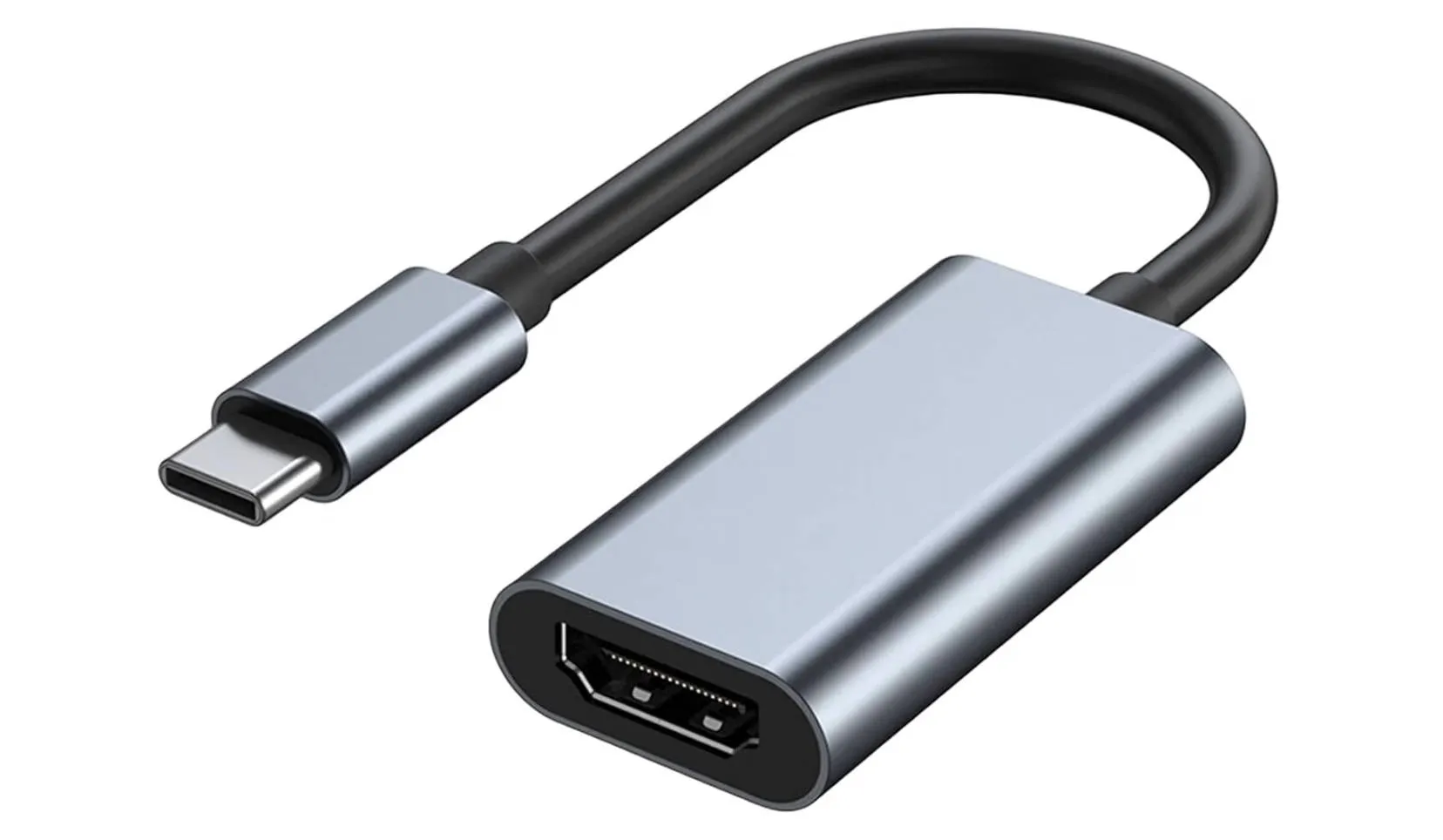
- Plug the adapter into your device.
- Connect HDMI from the adapter to the television.
- Switch the television to that HDMI input.
- Start the film.
Buy an adapter with a power passthrough socket. Playing a film for two hours at full brightness while driving a television will empty a battery, and the version with a socket lets you charge at the same time. Apple’s own adapters have one, and so do most of the reputable third-party ones.
Careful
Very cheap HDMI adapters are a well-known disappointment on iPhones and iPads. The ones that fail tend to fail on protected content or at higher resolutions rather than immediately, so they test fine and then let you down on the one evening you needed them.
Which to pick
If the television is an Apple TV, install JellyMold on it and watch there. It talks to your server itself, so there is no phone in the chain and nothing to prepare on the way.
Otherwise, cast when you want the television to do the watching: the picture is on the big screen, your phone is a remote rather than a projector, and you can put it down.
Use a cable when the picture matters most, or when the network is the problem. It is unaffected by Wi-Fi and it looks the way the file looks.
Mirror when neither of the others is available.
The Apple TV app
Everything above sends the picture from your phone. JellyMold on Apple TV takes the phone out of the question: the television talks to your Jellyfin server itself, so nothing is captured or prepared on the way.
It plays files the way JellyMold does on a phone, which means the same direct playback and the same picture, and it is part of the same subscription. Casting is still worth knowing: it is how you start something from your hand, and it is the route to a television that is not an Apple TV.