
Users with small libraries, or those who usually delete their content after watching it, may not find this step helpful. This is for large library users who do not want to have to mark all their content to the correct watch state manually. This is also a step that halts many migrations. Eight years of watched episodes is not something anyone throws away to try a different app, and neither server offers a native way to make this move easy.
It is solvable. It is also the only genuinely fiddly part of leaving Plex, so it is worth understanding before you start rather than halfway through.
Why neither server makes this easy
Plex keeps your watch state in its own database, in its own format, and offers no export. Jellyfin keeps its own, in a different format, and offers no import.
Neither project has any reason to build a bridge to the other, so the bridge is a third-party tool, maintained by somebody who wanted the same thing you want.
The tools worth looking at
Three of them, all open source, all free. Checked in October 2026.
Settle one question first, because it rules an option in or out before anything else does: are you willing to work in a terminal? Two of these three give you no choice.
| Interface | Left at its defaults | |
|---|---|---|
| JellyPlex-Watched | Terminal only | Syncs every hour, forever |
| Trakt, as two tools | Half and half | Syncs when you tell it to |
| Plembfin | Web interface | Syncs every minute, forever |
JellyPlex-Watched
The direct route, and where we recommend you start. It talks to both servers, matches items by filename and by the provider ids already in your metadata, and syncs watched flags, in-progress positions and view dates. It runs as a Python script or as a Docker container, and it has a dry run mode, which the rest of this guide leans on heavily.
github.com/luigi311/JellyPlex-Watched, GPL-3.0. Around a thousand stars and commits within the last month when this was written. It speaks Emby too, which helps if that is where you are coming from instead.
What to expect: a terminal and a configuration file, and nothing else. There is no interface of any kind, and there is no version of this that avoids one.
It is also worth knowing that out of the box it is not a migration tool at all. Left at its defaults it wakes every hour and syncs again, forever. Telling it to make a single pass and stop is one line in the configuration, but it is not what it does unless you ask, and people have left one running against a server they thought they had finished with months earlier.
That daemon behaviour is exactly right for the other job, though, which is the month where you are running both servers side by side and want whichever one you open to be current.
Trakt as the go-between
Two tools rather than one, and more moving parts, but both halves are busily maintained and you end up with a watch log that outlives both servers.
Send your Plex history to Trakt with PlexTraktSync, which is the most actively developed thing on this page. Then pull it into Jellyfin with the official Trakt plugin. Both are MIT licensed.
What to expect: half of this has an interface and half does not. The Jellyfin end is a plugin, installed from the catalogue and configured in the dashboard like any other. The Plex end is a terminal tool, and before you reach it you have to register your own application with Trakt to get a key, which is a step neither of the others asks for.
It syncs when you run it rather than on a timer, unless you turn on the mode that watches your Plex server and records plays as they happen.
Careful
This route sends your watch history to a third party, which deserves a thought in a guide about taking a company out of the middle of your media. That is most of the argument for Jellyfin in the first place. Trakt is a service with an account and terms, and it will know what you have watched.
Plembfin
Newer, and a different shape. It is a self-hosted hub that keeps Plex, Emby, Jellyfin and Trakt aligned continuously, rather than performing a migration once. That suits the month where you are running both servers and want whichever one you reach for to be current.
github.com/Lasikiewicz/plembfin, AGPL-3.0.
What to expect: a web interface, which for a lot of people is the whole decision. Servers are connected through a guided setup rather than a text file, and there is a dashboard showing what is playing and what has been synced. There is a Windows installer as well as the usual container.
Three things to weigh against that. It runs as a continuous service and checks every minute, so like JellyPlex-Watched it is built for keeping servers aligned rather than for moving once. It has no general dry run, and the rest of this guide leans on dry runs heavily, so with this one the backup and a single test library are doing that job instead. And it is much the youngest and smallest of the three, a few dozen stars against the thousand on JellyPlex-Watched, so far fewer libraries have been thrown at it.
That last pairing is an awkward one and worth saying plainly: the friendliest option here is also the least battle-tested.
Check these yourself before you run them
That was accurate in October 2026, and this corner of the ecosystem moves. Before you hand any of them a Plex token and a Jellyfin API key, open the repository and look at the date of the last commit, whether issues are being answered, and whether anyone has recently reported it making a mess of a watch history.
A tool recommended in a two-year-old forum post may be abandoned by the time you read the post. That applies to this guide as much as to any other.
What actually transfers
Be realistic about this, it might work, it might only partially work, but a tool that moves eighty per cent of it is still a very good outcome.
| Watched and unwatched flags | Usually, and reliably |
| Resume points, part-way through | Usually |
| Play counts | Sometimes |
| The dates you watched things | Rarely |
| Ratings | Sometimes |
| Collections and playlists | No, that is a different job |
Watched flags and resume points are the ones that matter day to day, and they are the ones most likely to work. Set your expectations there.
Before you touch anything
Both libraries must be fully scanned
The sync works by matching an item on one server to an item on the other. It cannot mark something watched that Jellyfin has not found yet. A half-scanned library produces a half-migrated history and no warning.
If the Jellyfin side is not built yet, Set up your first movie library covers the settings worth getting right before that first scan rather than after it.
Fix the filenames first
Matching is by title, year and identifiers. A film that matched wrongly on either server will either not sync or will mark the wrong thing watched. How to name your media files for Jellyfin.
Back up both
Jellyfin’s config directory, and Plex’s own database directory. If a sync goes
wrong in a way you did not expect, restoring is a great deal faster than
repairing. Back up your Jellyfin server
properly.
Create your Jellyfin users first
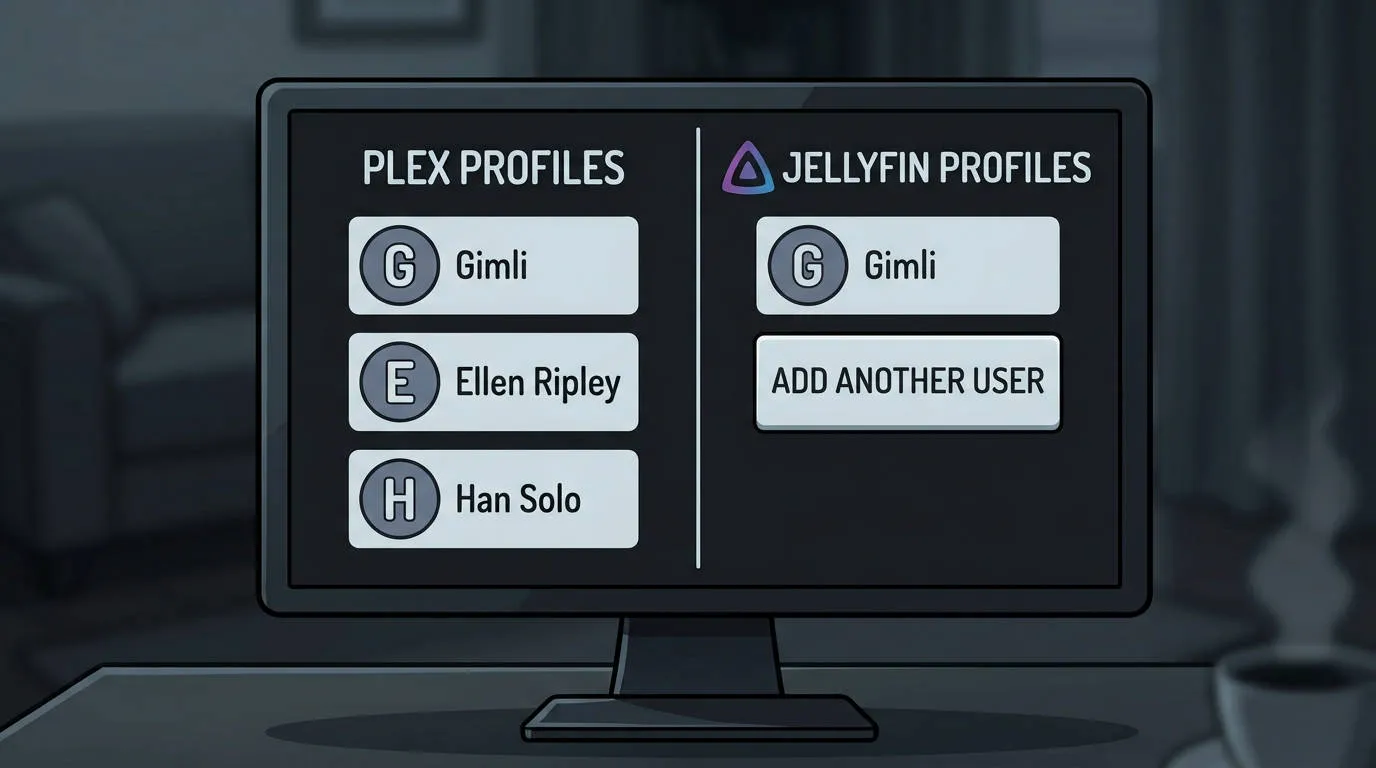
History is per user, and it syncs into an account that has to exist. So ensure you have matching users to each user history you want to migrate.
Accounts are made under Dashboard, then Users. Set up a child’s account and limit what they can see covers the part worth thinking about while you are in there.
Get the two credentials you will need
Whatever tool you use has to talk to both servers, which means one credential from each. Collect them before you start and keep them somewhere you can paste from.
Your Plex token
Plex does not show this anywhere in its settings, and there is no button that hands you one. There are two ways to get at it, and one fact makes the choice easy: a Plex token belongs to your account, not to the machine your server runs on. You do not have to be at the server to collect one.
So almost everybody should use the browser, below. Reading it off the server’s own config file is a fallback, for when you happen to be at a terminal there already, or when Plex Web will not let you in.
From a browser, on any computer
This works from your laptop, your phone, or anything else signed in to the Plex account that owns the server. That server can be a NAS in a cupboard with no screen attached and no keyboard; it makes no difference to this method.
What makes it work is that Plex will show you the raw data behind any item in your library, and the token travels in the address of that request.
- Sign in to Plex Web at app.plex.tv, as the account that owns the server.
- Open any film or episode in your library.
- Open that item’s menu, the three dots, and choose Get Info.
- In the panel that appears, choose View XML. It sits at the bottom left.
- A new browser tab opens full of XML. Look at the address bar rather than the page.
- The end of that address reads
X-Plex-Token=followed by around twenty letters and numbers. That is your token.
Copy everything after the equals sign, and nothing else. No quotes, no trailing ampersand.

Treat this like a password
A Plex token is account-level access, not server-level. Anyone holding it can reach your Plex account. Do not paste it into a web page offering to do the migration for you, do not put it in a forum post asking for help, and redact it from any screenshot.
If one does escape, sign out of all devices from your Plex account settings. That invalidates the tokens already issued, and you then collect a fresh one the same way.
From the server’s own config file
The fallback. Worth knowing if you are already at a terminal on the server, if you want to script this, or if Plex Web will not sign you in.
When a server is claimed, Plex writes a token for the owning account into
Preferences.xml, as the PlexOnlineToken attribute. It is a different string
from the one the browser shows you, because Plex issues a token per client, but
it authenticates as the same account and the sync tools accept either.
| Platform | Where Preferences.xml lives |
|---|---|
| Linux | /var/lib/plexmediaserver/Library/Application Support/Plex Media Server/ |
| Docker | the same path, inside your config volume |
| macOS | ~/Library/Application Support/Plex Media Server/ |
| Windows | %LOCALAPPDATA%\Plex Media Server\ |
| Synology | /volume1/Plex/Library/Application Support/Plex Media Server/ |
Open the file, find PlexOnlineToken= near the top, and copy what sits between
the quotation marks.
Your Jellyfin API key
This one is a real feature rather than a trick, and it takes about thirty seconds.
- Sign in to Jellyfin as an administrator.
- Open the Dashboard, from the menu under your user icon.
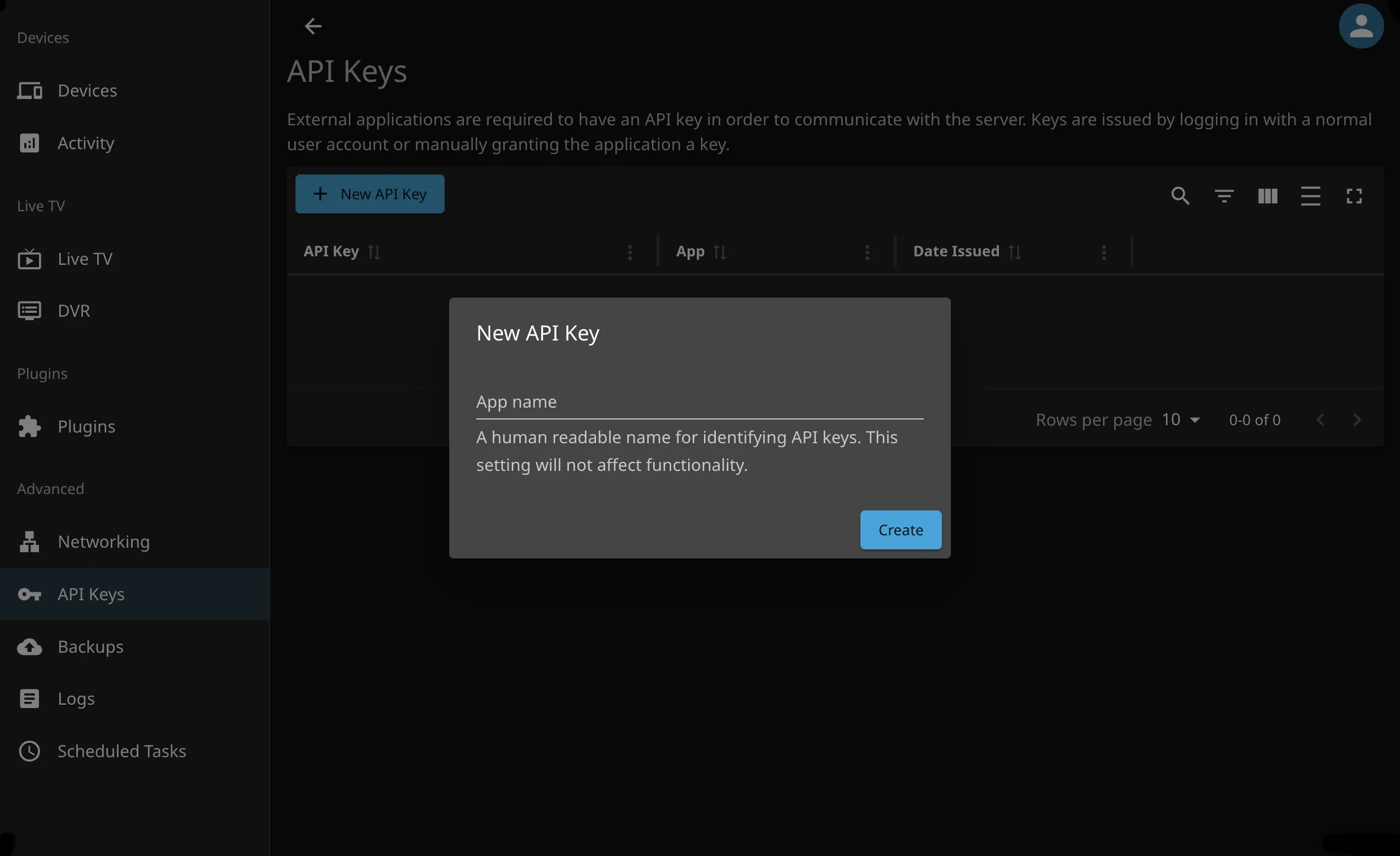
- In the sidebar, under Advanced, choose API Keys.
- Choose the plus button to create a new key.
- Name it for this job, something like
Watch history sync, so that in six months you know what you are looking at. - Confirm. The key appears in the list, and you copy it from there. Store it securely.
Note
A Jellyfin API key is not scoped to one user or one library. It carries the same access an administrator has. That is the reason to name it for the job and to delete it on this same page when you have finished.
Do a small test before running it everywhere
Whatever tool you use, the rule is the same: run it against one small library before you run it against everything.
Most of these tools have a dry-run mode that reports what it would change without changing it. Use it. Read the output properly. You are looking for the number of matched items being close to the number of items you actually have.
A large gap means the matching is failing, and running it for real will not fix that, it will just do the wrong thing faster.
Then run it for real on that one library, and go and look: open half a dozen things in Jellyfin and check the watched marks and the resume positions are where they should be.
Then the rest
Once a small library has come across correctly, run the whole thing. Expect it to take a while: it is comparing every item on both servers, and both have rate limits.
Afterwards, check across several kinds of content, not just the easy ones: a television series part-way through a season, a film you stopped in the middle, and something with an ambiguous title.
What to do about the gaps
Some things will not match. Usually the awkward ones: obscure titles, a series the databases split differently, anything with a bad filename.
Fix and re-run
Most tools can run repeatedly and are safe to. Correct the filename or the identification, rescan, run again.
Fix the important ones by hand
Marking a series watched in Jellyfin takes seconds. For a handful of items this is faster than chasing the tool.
Accept a few losses
You are moving thousands of items. A dozen that did not match are not worth a weekend.
Tip
While you are still running both servers, some of these tools can keep the two histories aligned continuously. That takes the pressure off completely: watch on either, and both stay current, until you are ready to turn one off.