
The reason people stall on switching is that it feels like a one-way door. Months of watch history, a family used to one app, and a weekend of work if it goes badly.
It is not a one-way door. Both servers can read the same files at the same time, and neither knows or cares that the other exists. Run both for a month, decide with evidence, and turn one off once you’ve decided.
Why this works
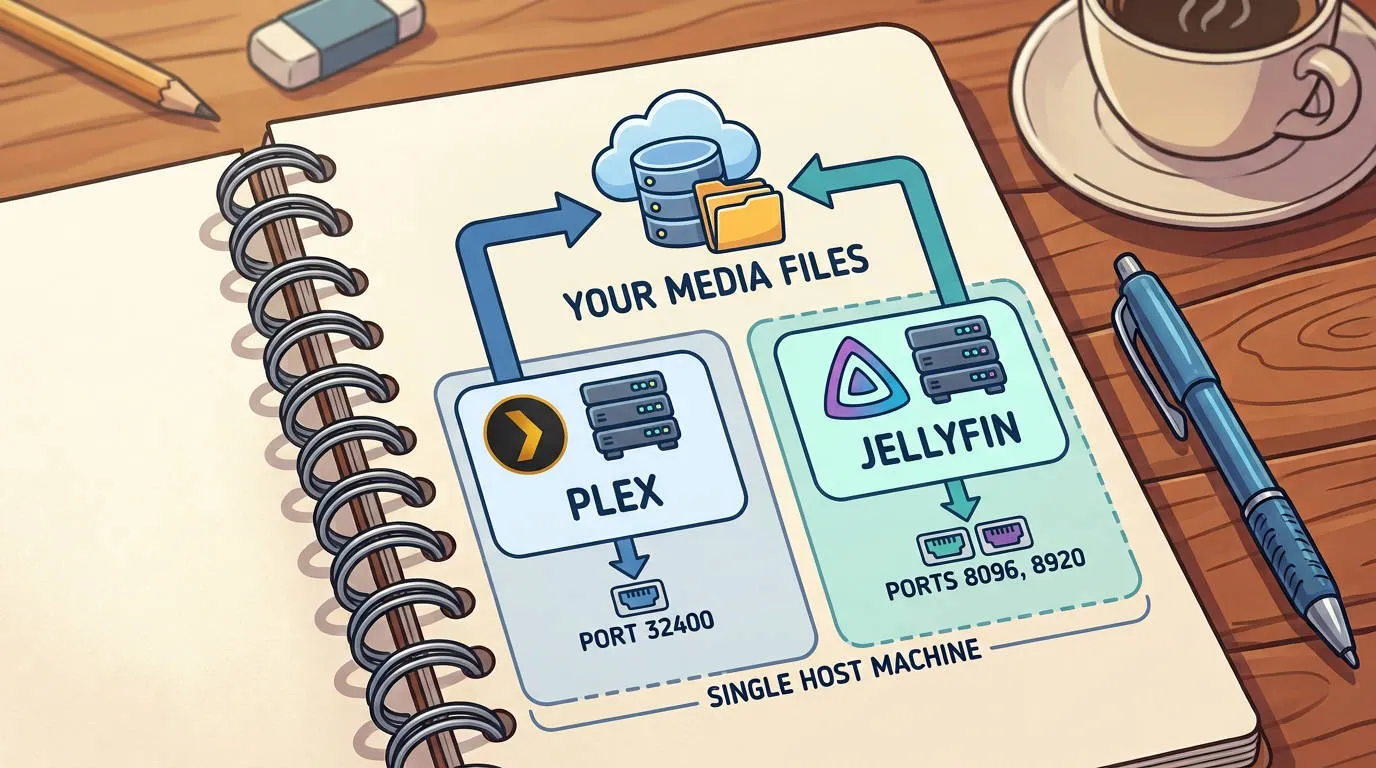
Neither server modifies your media. Both read the same folders where your files live, build their own database somewhere else, and leave the files alone.
So there is nothing to divide up and nothing to duplicate. One copy of your library, two servers reading it, two sets of metadata in two separate places.
Note
The only thing you spend is disk space for a second set of artwork and metadata, which is small, and a second set of trickplay images if you generate them, which is not nothing but is measured in single-figure gigabytes for large libraries.
Install Jellyfin alongside
Same machine is fine. They use different ports and do not conflict.
| Server | Default port |
|---|---|
| Plex | 32400 |
| Jellyfin | 8096, and 8920 for HTTPS |
Install Jellyfin with Docker is the usual route, or if on a NAS system like Synology, you’ll find the app in the Package Center.
Point Jellyfin’s libraries at exactly the folders Plex already uses. Do not copy anything, do not move anything, do not reorganise anything yet.
Tip
Give Jellyfin read-only access to your media. Then no sequence of mistakes ends with Jellyfin changing something Plex depends on, which removes the main reason people are nervous about trying this at all. In Docker that is one word on the volume, and Install Jellyfin with Docker shows where it goes.
Let it scan, and expect the names to matter
Jellyfin will scan and build its own library. On a large collection this can take hours.
Some things may match less successfully than they did in Plex. That is not a defect, it is that the two read filenames slightly differently, and Plex has built systems to quietly cover for names that are not quite right.
Seeing the results of the initial scan tells you exactly which files are badly named, which is data worth knowing whichever server you end up on. How to name your media files for Jellyfin is the fix, and fixing the names improves both services.
Bring your watch history over
You do not have to, for a trial. But a month of using a server that thinks you have watched nothing is not a fair test, and it is the main reason people conclude they prefer the one they started with.
Our guide on bringing your Plex watch history with you covers how to migrate this data. The sync tools can run repeatedly, which suits this situation of keeping both servers’ histories aligned while you are still deciding.
Use it properly for a month
The mistake is to install Jellyfin, poke at it for twenty minutes, and conclude it is worse because it is unfamiliar. Everything is worse than the thing you have used for five years, until you give it a fair run.
To make an informed decision, use it properly.
- Watch a full film on the screen you normally use
- Get others in your household to try it without overexplaining the differences
- Try it from outside the house, which is where the real difference is
- Try the awkward files, the 4K ones and the ones with odd audio
- Watch what the server does while all of this happens

Careful
Do not turn off Plex’s remote access while you are testing. If Jellyfin’s remote access is not set up yet, you will conclude Jellyfin cannot do something it can do, because you only half set it up. Reaching your server from outside is a ten-minute job and it should form part of your trial of the move to Jellyfin.
Deciding
Whatever you do, make a decision, eventually. Two servers indefinitely means two sets of updates, two sets of watch history slowly diverging, and a household that never learns which app to open.
Staying with Plex costs nothing beyond what you were already paying. Remove Jellyfin, delete its config directory, and your media has not been touched.
Moving to Jellyfin means making sure the history came across, moving everyone onto it properly, and then turning Plex off when you’re sure the move is permanent.