
Tailscale builds a small private network out of your own devices. Your phone, on mobile data on a train, behaves as though it were sitting on your home Wi-Fi.
For watching your own library away from home, this is the best answer available: nothing of yours is on the public internet, there is no address for anyone to find, no certificate to renew, and no port forwarding.
What it is doing
Every device you install it on gets a private address that only your devices can reach. Connections between them are encrypted and, where the networks allow, go directly from one device to the other rather than through anybody’s server.
Your router is not involved, there is nothing to configure on it, and none of this is visible from outside.
Note
Not a VPN in the sense of a service that hides your browsing. There is no exit server and your normal traffic is untouched. It connects your own machines to each other, and that is all it does.
Install it on the server
Linux, including most NAS boxes with a terminal:
curl -fsSL https://tailscale.com/install.sh | sh
sudo tailscale up
That prints a link. Open it, sign in, and the machine joins.
macOS and Windows have ordinary installers from tailscale.com/download. Install, sign in, done.
Synology and QNAP have it in their own package centres. Install from there rather than from a terminal, so it survives updates.
In Docker, put it on the host
Install Tailscale on the machine, not inside the Jellyfin container. It is possible to run it in the container, and it is more work for no benefit on a home server.
One thing to check: with network_mode: host, Jellyfin is reachable on the
Tailscale address immediately. With published ports, make sure it is bound to
all interfaces rather than only to localhost, or the Tailscale address will
refuse the connection.
Install it on your phone
Tailscale is in the App Store. Install it, sign in with the same account, and turn the connection on.
That is the whole setup. The two devices can now see each other.
Find the address, and use the name
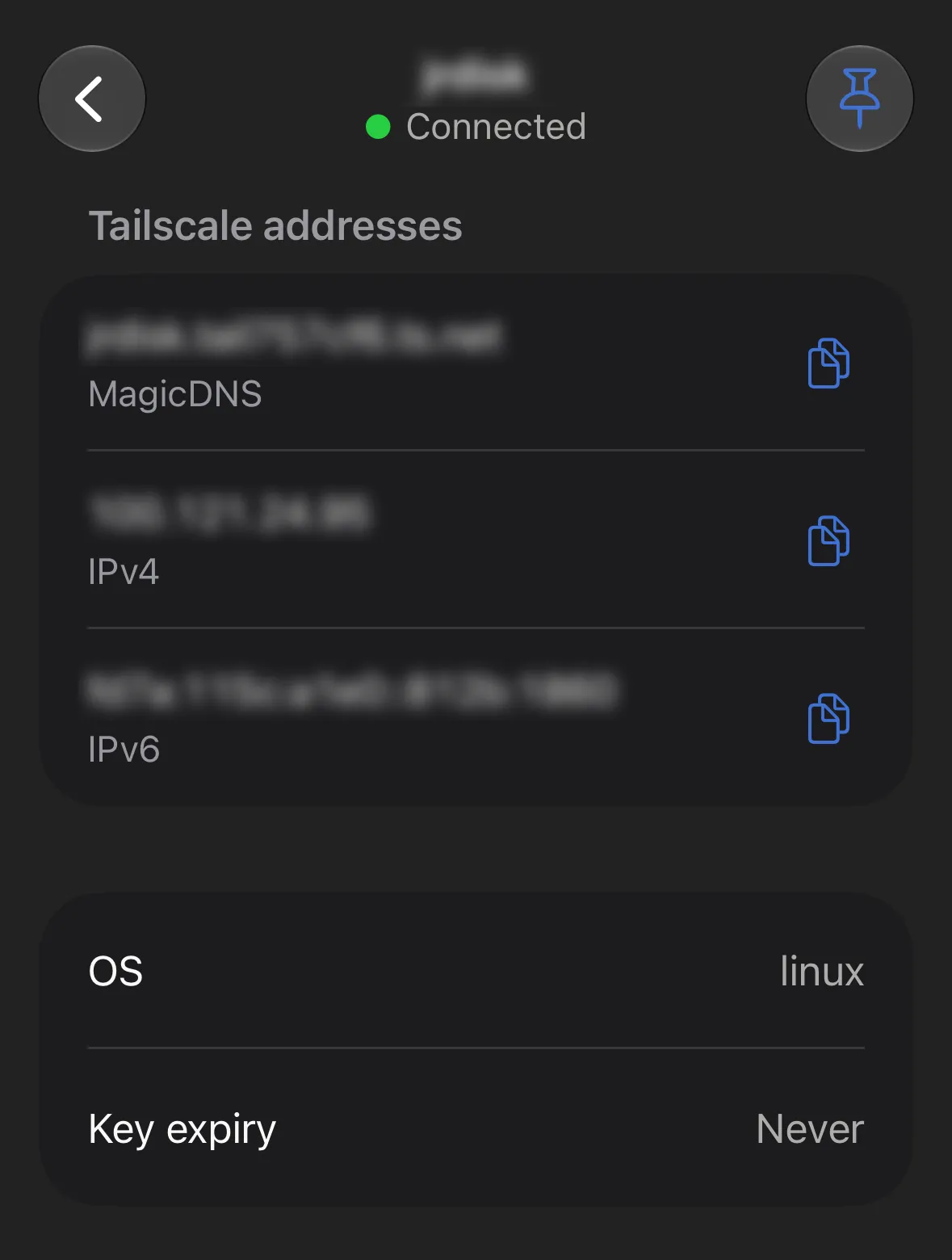
The admin console at login.tailscale.com lists
your machines with their addresses, which look like 100.x.y.z.
Jellyfin is then at http://100.x.y.z:8096.
Better, turn on MagicDNS in the admin console and use the machine’s name
instead: http://jellyfin-server:8096. Names do not change when something is
rebuilt, which addresses occasionally do.
Tip
Use the name in your Jellyfin apps rather than the address. A phone that has the name saved keeps working after you rebuild the server, and you will rebuild the server eventually.
Set up the app once, for both networks
Point your Jellyfin client at the Tailscale address and leave it there. It works at home and away, because Tailscale is happy to route over your local network when both devices are on it.
The connection is direct where it can be, so at home you get local speeds with the Tailscale address in the app.
What to expect away from home
Playback quality away from home is limited by your home broadband’s upload speed, not by Tailscale. A typical connection carries one direct-played 1080p stream comfortably. 4K usually needs more upload than a home connection has.
This is where direct play matters more than usual. A client that plays the file as it is uses exactly the bitrate of the file. A client that makes the server transcode adds a delay before playback starts and asks your home server to work hard while you are not there to hear it.
Note
JellyMold asks for the file as it is, which over a remote connection means playback starts straight away and your server stays idle. Where the upload speed genuinely will not carry a file, a lower-bitrate copy is a better answer than transcoding on demand.
Share with one other person
You do not have to put somebody on your whole network to let them watch.
In the admin console, share the Jellyfin machine specifically with their Tailscale account. They install Tailscale, accept, and can reach that one machine and nothing else.
Good for a family member in another house. Still a nuisance for fifteen people, which is the point at which a reverse proxy starts to make sense instead.
When it does not work
The app connects but Jellyfin does not load
Jellyfin is probably bound only to localhost. Check it is listening on all interfaces.
It works at home but not away
The client is probably saved with the local address. Use the Tailscale name everywhere.
Everything is slow
Check whether the connection is direct or relayed:
tailscale statusA relayed connection goes through Tailscale’s servers and is slower. It usually means both ends are behind awkward routers, and enabling UPnP on the router, only for this, often fixes it.
The phone drops off
iOS suspends VPN connections aggressively when the app has not been used. Open Tailscale once and it reconnects.